LibreNMS 提供了多種 Dashboard 資訊看板的定義方式與 Widget 小工具,可以自行組合出想要的圖表樣式。但人想做總是的更多,可能有些非常複雜或酷炫的圖表無法以 LibreNMS 製作出來,有什麼方法來解決呢?
沒問題,您可以將 LibreNMS 整合目前開源陣營中的圖表超級高手,交給它搞定!
搭配套件
當今開源界最夯的圖表平台,首推是它。
不過只有 Grafana 是不足以讓 LibreNMS 的資料呈現在圖表上,還需要當配另一個在開源界同樣很熱門的效能監視系統。
有了 Prometheus,就可以開始進行相關設定。官方文件提到的需求軟體與條件如下
- Prometheus >= 2.0
- Prometheus PushGateway >= 0.4.0
- Grafana
- PHP-CURL
開始設定
首先,我們開啟 LibreNMS 的設定檔 /opt/librenms/config.php,以開啟對 Prometheus 的支援。
$config['prometheus']['enable'] = true;
$config['prometheus']['url'] = "http://127.0.0.1:9091";
$config['prometheus']['job'] = "librenms"; # Optional
在 LibreNMS 的設計上,他是將自己的數據資料排程丟到本機安裝的 Prometheus PushGateway 暫存,再由 Prometheus Server 來對 Prometheus PushGateway 做 Pull 行為將資料拉取。
因此,我們還需要在 LibreNMS 主機上安裝與設定 Prometheus PushGateway。
mkdir /opt/prometheus
cd /opt/prometheus

https://github.com/prometheus/pushgateway/releases/download/v0.7.0/pushgateway-0.7.0.linux-amd64.tar.gz

tar -xvzf pushgateway-0.7.0.linux-amd64.tar.gz
cd pushgateway-0.7.0.linux-amd64
./pushgateway &
安裝完成以後,可以先驗證一下 Prometheus PushGateway 是否有正確執行並可取得 LibreNMS 所丟出來的資料:
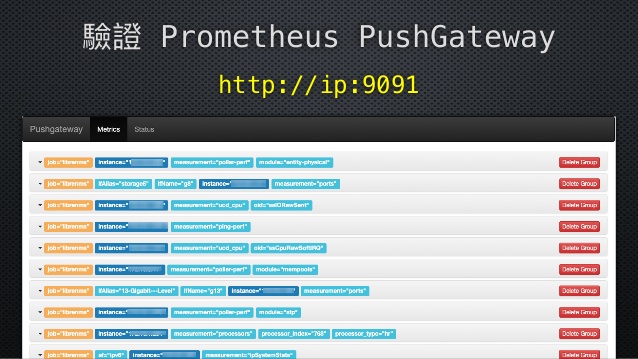
確認運作正確後,接著要來修改 Prometheus Server 的設定,讓他可以連線至剛剛運作起來的 Prometheus PushGateway。
請開啟 Prometheus Server 的設定檔,例如 /opt/prometheus/prometheus.yml。
   - job_name: 'librenms'
     scrape_interval: 300s
     honor_labels: true
     static_configs:
       - targets: [‘aaa.bbb.ccc.ddd:9091’]
當中的 targets 值請替換為您的 Prometheus PushGateway 主機 IP,儲存後重新啟動 Prometheus Server,並進入 WebUI 查看 Targets 頁面,若 librenms job 下的設定狀態為 UP,即表示設定正確。
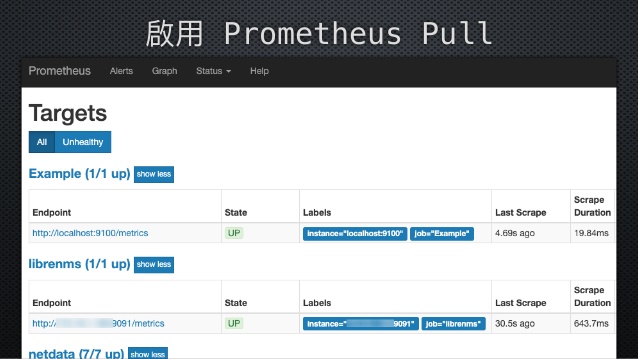
註:當我們啟用 Prometheus 整合機制後,原本 LibreNMS 的 RRD 效能數據一樣會繼續正常運作,不受影響。
使用圖表
當您的 Grafana 有設定 Prometheus 做為 Data Source 資料來源,即可相當容易的在建立圖表時,選取 LibreNMS 效能數據做為圖表資料來源。
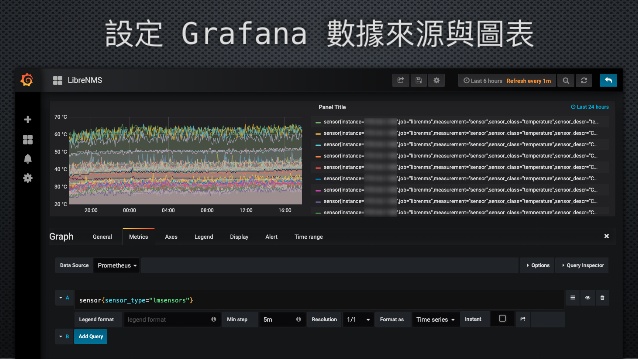
若想要知道全部有那些 LibreNMS 效能數據可以使用,可以在 Prometheus PushGateway 的本機測試網頁查看,或是到 Prometheus Server 的 WebUI 上,Query 查詢條件將 job 指定為 librenms,即可顯示所有可用的數據指標。
結論
當這些設定都完成,接下來即可利用 Grafana 強大的圖表功能隨心所欲的配置您希望的各種酷炫圖表效果,以及 Grafana 的警報機制。
不過在我的經驗裡,LibreNMS 的警報機制比 Grafana 好用,所以我選擇繼續使用 LibreNMS 做為告警的系統,Grafana 只做為呈現圖表繪製。
另外,由於 Prometheus + Grafana 可以整合非常多的 Data Source 資料來源,所以我會將來自 LibreNMS、Netdata、Proxmox VE 等多種效能資料,一次整合呈現在我希望的畫面上,對於不同系統之間的交叉比對可以非常快速的得出結果,一目了然。
參考資料
- LibreNMS 資安應用經驗分享 [2019/07/11] @國際資訊安全組織臺灣高峰會https://www.slideshare.net/jasoncheng7115/librenms-20190711
- Enabling support for Prometheus. - LibreNMS Docs
https://docs.librenms.org/Extensions/metrics/Prometheus/